Getting Started
FPVGate is an RSSI-based lap timing solution for FPV drones. It measures lap times by detecting your drone's video transmitter signal strength as you fly through the gate.
Option 1: FPVGate AIO (Easiest)
The FPVGate AIO is a prebuilt all-in-one board with everything included. No soldering or wiring required. Purchase from the FPVGate Shop or follow the AIO quick start guide.
Option 2: Build Your Own
- Seeed Studio XIAO ESP32S3 (Recommended) or ESP32-S3 DevKitC-1
- Receiver: SPI-modded RX5808 for single pilot, or an ESP32-C5 running FPVGateC5MK for up to 8 pilots with one C5 (requires compatible Multi-Alpha timer firmware)
- MicroSD Card (FAT32, 1GB+)
- 5V Power Supply (USB power or any 5V source)
- WS2812 RGB LEDs (optional)
- Active Buzzer (optional)
- 3D printed enclosure (optional, see 3D Printed Parts)
Existing SPI receiver builds remain supported. For a C5 build, start with the C5 receiver guide; it covers multi-pilot UART, direct USB to RotorHazard, and C5RX single-pilot SPI.
Hardware Setup
FPVGate AIO
If you have the FPVGate AIO prebuilt board, no wiring is needed. Simply flash the firmware and insert an SD card to get started. Get one from the Shop.
Choose your receiver
| Build | Receiver | Guide |
|---|---|---|
| Single pilot | RX5808 / existing SPI receiver and analog RSSI | Use the wiring diagrams below |
| Up to 8 pilots, one C5 | FPVGateC5MK over UART to your S3 | C5MK setup and wiring |
| Single-pilot C5 replacement | FPVGateC5RX over SPI with analog RSSI filter | C5RX SPI guide |
The diagrams below are for the traditional SPI receiver build. Select your S3 board to see its wiring. C5MK uses its own UART wiring tables and does not need an analog RSSI filter.
Note on ESP32-S3 Super Mini
Through testing, the ESP32-S3 Super Mini has proven unreliable due to inconsistent board quality from various suppliers. Some revisions experience frequent brownouts under load. This board is still available under Expert Mode in the flasher, but is not recommended for new builds.
Important
The RX5808 module must be SPI modded to work with FPVGate. See the SPI mod guide.
3D Printed Parts
If you are building your own timer, these parts are free to download and print. Each one can be previewed in 3D on the 3D print files page, along with its recommended print settings.
Loading parts…
Flashing Firmware
Use our web-based flasher for the easiest installation experience. No command line required!
S3 timer and C5 radio are flashed separately. Use the standard board picker for S3 firmware, with Pre-Release Firmware enabled for Multi-Alpha builds. Open the C5 Radio page to flash your receiver: choose its board, then C5MK multi-pilot or C5RX single-pilot SPI. An RX5808 needs no C5 firmware. Check firmware compatibility.
Connect Your Device
Connect your ESP32-S3 to your computer via USB. Use Chrome, Edge, or Opera browser.
Select Board & Version
Choose your board type and the firmware version you want to install.
Flash
Click "Connect & Flash Device" and wait 2-3 minutes for the process to complete.
SD Card Setup
FPVGate uses an SD card to store voice announcement files and race data. Setting up the SD card correctly is essential for audio features.
SD Card Requirements
- Format: FAT32
- Size: 1GB - 32GB recommended
- Speed: Class 10 or higher for best performance
Automatic Setup (Recommended)
Use the SD Card Setup tool on the Flasher page to automatically download and extract the correct folder structure to your SD card:
- Insert your FAT32-formatted SD card into your computer
- Go to the Web Flasher page
- Find the "SD Card Setup" section in the sidebar
- Select your firmware version
- Click "Select SD Card & Setup" and choose your SD card folder
- The tool will download and extract all required files automatically
Manual Setup
Alternatively, you can manually set up the SD card:
- Download the
SD_Card.zipfrom the GitHub releases page - Extract the contents to the root of your SD card
- Ensure the folder structure matches the expected layout (audio files in the correct directories)
Important
Make sure to use the SD_Card.zip that matches your firmware version. Each release may have different audio files or folder structures.
Configuration
After flashing, reach the web interface either over the FPVGate WiFi network or, on firmware 1.8.0 and later, straight down the USB cable.
Over USB (firmware 1.8.0 and later)
- Connect the gate to your computer with a USB-C cable
- Open a browser to:
http://192.168.7.1
The gate presents itself as a network device, so there is nothing to install and no WiFi network to join. WiFi keeps working at the same time.
Windows and Linux only. macOS cannot support this, as Apple removed the RNDIS protocol it relies on — use WiFi on a Mac.
Nothing appearing? Unplug the cable and plug it back in. After a firmware update the board waits in its bootloader and will not start until power has been removed; pressing reset is not enough. If it is listed as a device but the address will not load, unplug and replug once more — Windows occasionally brings the network adapter back disabled.
First-Time Setup
- Connect to WiFi network:
FPVGate(v1.6.1+) orFPVGate_XXXX - Password:
fpvgate1 - Open browser to:
http://fpvgate.local(all devices now use this simplified hostname) - Go to Configuration → Set your VTx frequency
- Configure LED settings (if using RGB LEDs)
- Set up voice announcements (optional)
- Choose a theme in Settings (v1.5.7+)
- Configure battery monitoring if using a voltage divider (v1.5.6+)
- Adjust audio volume controls for beeps and announcements (v1.6.0+)
- iOS Safari is fully supported with improved hostname handling (v1.6.1+)
Calibration
Proper calibration is essential for accurate lap detection.
Calibration Wizard
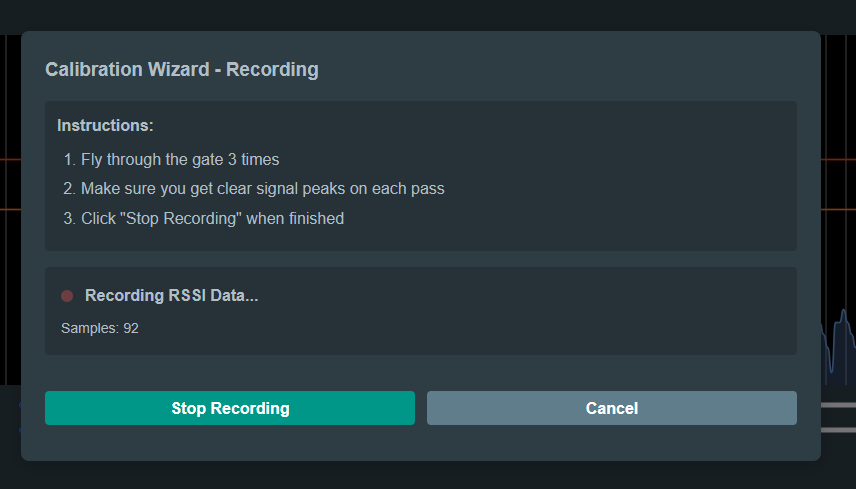
FPVGate includes a guided calibration wizard that helps you set optimal RSSI thresholds:
- Place your drone at the gate
- Start the calibration wizard
- Move the drone through the gate several times
- The wizard will automatically calculate optimal thresholds
Manual Calibration
You can also manually set thresholds:
- Enter Threshold: RSSI level when crossing starts
- Exit Threshold: RSSI level when crossing ends
- Peak Detection: RSSI must peak between enter and exit
Using the Lap Timer
Starting a Race
- Ensure calibration is complete
- Power on your drone
- Click "Start Race" on the web interface
- Fly through the gate - laps will be recorded automatically
- Click "Stop Race" when finished
Features During Race
- Real-time lap display
- Fastest lap highlighting
- Gap analysis
- Voice announcements for each lap
- LED feedback (if configured)
- On-screen displays (OSD) for live stats
Multi-Timer Race Sync
Sync separate single-pilot timers using multi-timer sync, or use one C5MK receiver for up to eight pilots. These are separate operating modes.
After Race
- View race statistics
- Export race data
- Compare with previous sessions
- Edit laps if needed (Marshalling Mode)
Event Mode: Pilots, Groups & Heats
Event Mode adds a race-director workspace to your FPVGate S3 timer. Build a pilot roster, organise groups, choose how races are scored and plan the running order. An event can contain several groups, with up to eight pilots in each heat using one C5MK receiver.
Requirements: Event Mode is included in v1.9.0-Multi-Alpha-3, currently packaged for the Seeed XIAO ESP32S3 and Waveshare ESP32-S3-ETH. Running its heats requires the ESP32-C5 multi-pilot receiver setup. It is off by default; existing SPI builds keep their normal racing and multi-timer sync workflow.
Enable Event Mode
On the timer's web interface, open Settings → User Interface → Event Mode and turn it on. The Event tab appears. First make sure C5MK is connected, the C5 receiver mode is selected and pilot calibration works.
Build your event
- Add or import pilots. Set names, spoken names, colours, channels and enter/exit thresholds. Import an existing roster from CSV or JSON, or export a roster to reuse at another session.
- Create groups. Choose a group size up to eight and select roster order, random, Elo rating, fastest lap or best three consecutive laps as the seeding method. Click Build groups, or edit groups yourself.
- Assign channels. Choose a band and use Assign channels to spread each group's frequencies. You can override a pilot's channel within a group. Check assignments and calibrate on the channels you will race.
- Choose a race format. Set a lap limit, heat time, minimum lap time, start countdown and win condition. Assign the appropriate format to each group.
- Plan the heat order. Open Heat order to repeat a group or rotate through several groups. Drag blocks to reorder them, or tap to add them on a touchscreen.
| Format | How pilots are ranked |
|---|---|
| Most laps, fastest time | More completed laps first, then lower total time |
| First to the lap limit | Fastest to complete the configured lap target |
| Fastest lap | Best individual lap |
| Fastest 3 consecutive laps | Best combined time for three consecutive laps |
Run the heats
Click a heat to load its group into the C5's pilot slots. FPVGate applies the pilots' channels and thresholds together with the group's race format. Check the loaded heat, then start the race from the Race tab.
When the race is saved, its results are recorded against that heat. Enable Load the next heat after each race to prepare the following heat automatically, or use Next Heat to select it yourself. Loading a heat does not start a race: start each race when the pilots and track are ready.
Example: twelve pilots split into groups A, B and C of four can rotate A → B → C three times for a nine-heat schedule. Each heat uses four of the C5's available pilot slots.
Results, seeding & backups
Review individual heat results, group standings and pilot statistics, including fastest lap, best three consecutive laps and Elo rating. Elo is calculated from recorded event races; lap-time seeding uses the results recorded in the event.
The event is saved on the gate. Export the whole event as JSON to back up pilots, groups, formats, heat order and results; import it to restore an event. Results can also be exported as CSV or as a standalone HTML report for sharing or printing. Export a backup before replacing an event or choosing New event.
Keep the web race page open: the current Multi-Alpha build relies on the browser for race completion and heat timeout. Event Mode is part of the S3 timer interface; a C5 connected directly to RotorHazard uses RH's event tools instead.
Install compatible timer firmware · Set up the C5 receiver · Multi-Alpha-3 release notes
FPVGateC5MK Multi-Pilot
Up to 8 pilots with one ESP32-C5 receiver. C5MK scans each pilot's channel and sends timestamped RSSI to your S3 over UART. FPVGate provides individual calibration, race results and per-pilot Visual Marshal editing in compatible Multi-Alpha firmware.
- Flash FPVGateC5MK onto your C5 using the C5 Radio flasher.
- Install a compatible Multi-Alpha build on the S3. Multi-Alpha-3 is packaged for XIAO S3 and Waveshare S3-ETH; check the flasher for your board.
- Connect host TX to C5 RX and host RX to C5 TX, plus ground and 5V power, using the C5 wiring guide.
- Select ESP32-C5 Multi-Pilot in Settings → Configuration → Receiver Module, save, and check that the radio is online in Calibration.
- Assign each pilot's channel and calibrate their thresholds. Keep the web race page open during racing.
C5MK tunes 5180–5917 MHz, including Raceband R1–R8. Current C5 mode does not use Master/Slave sync or daisy-chaining. Full physical eight-pilot race validation is still outstanding; review the current status and test your setup.
Using RotorHazard? C5MK 1.2.0+ also supports direct native USB timing without an S3 or plugin. Existing S3 timers still use the network plugin.
Multi-Timer Sync (SPI Receivers)
FPVGate supports synchronizing multiple timers for multi-pilot racing. Each pilot has their own FPVGate device, and one device acts as the Master to control the race.
Sync Modes
- Personal Mode (default) - Single pilot timing, no sync required
- Master Mode - Controls race start/stop, receives all pilots' lap data, shows multi-pilot comparison view
- Slave Mode - Follows Master's commands, sends lap times to Master automatically
Step 1: Connect All Devices to Same Network
All FPVGate devices must be on the same WiFi network:
- Option A: Connect all devices to your home/external WiFi network via Configuration → WiFi & Connection
- Option B: Keep one device in AP mode (FPVGate network), connect all other devices and your phone to that network
Step 2: Add Sync Devices (on Master)
- Go to Configuration → WiFi & Connection → Race Synchronization
- Find the "Add Device" input field
- Enter each slave device's IP address (e.g.,
192.168.4.100) - Click "Add Device" - it will appear in the sync devices list
Step 3: Set Device Roles
For each device in the list:
- This Device: Set to "Master" on the controlling timer
- Other Devices: Set to "Slave"
Role options: Personal (solo timing), Master (controls race), Slave (follows master), RotorHazard (syncs with RH server - see RotorHazard Integration)
Step 4: Test Connections
Click "Test All Connections" to verify all devices can communicate:
- Green checkmark = Ready to race
- Red X = Check network connectivity
Racing in Multi-Pilot Mode
Once configured:
- Start/Stop race from the Master device only - all slaves sync automatically
- Each pilot's laps appear side-by-side in the Master's race view
- Lap Times Chart and Consistency Chart compare all pilots
- Voice announcements include all pilots' lap times
- Race history saves complete multi-pilot data
Troubleshooting Multi-Pilot
- Devices not connecting: Ensure all on same network subnet, check firewall allows port 80
- Lap times not showing: Confirm slave is set to "Slave" role and master's IP is correct
- Race not syncing: Master must be set to "Master" role, test connections first
RotorHazard Integration
Choose your connection: the instructions below connect an S3 timer over the network using the FPVGate plugin. For C5MK directly over USB, follow the C5 USB guide instead. For an S3 + C5 multi-pilot gate, use plugin 2; Multi-Alpha-3's Marshal support uses 2.1.4 or later.
FPVGate v1.7.0+ can operate as an external RSSI node for RotorHazard, enabling bidirectional race control and lap submission.
Requirements
- FPVGate firmware v1.7.0 or later
- RotorHazard 4.x (tested on 4.4.0+)
- FPVGate and RotorHazard on the same local network
- The FPVGate RH Plugin installed on the RH server
How It Works
- FPVGate to RH: Gate crossings are submitted as laps; race start/stop commands are forwarded
- RH to FPVGate: RotorHazard race events (stage, start, stop) are relayed back to control FPVGate
- Clock Sync: NTP-style synchronization keeps timing aligned between both systems
Setup Steps
Install the RH Plugin
Clone the fpvgate-rh-plugin into your RotorHazard plugins/ directory and restart the server.
Connect to Network
Set FPVGate to Station mode (WiFi & Connection settings) so it joins the same network as the RH server.
Enable RotorHazard Mode
In Sync settings, set this device's role to RotorHazard. Enter the RH Host IP and select the node seat (0-7).
Verify & Sync
Click Refresh to check the connection status, then Sync Now to synchronize clocks. RTT under 10ms is ideal.
For full technical details, endpoint reference, and troubleshooting, see the complete RotorHazard Integration guide.
Screenshots
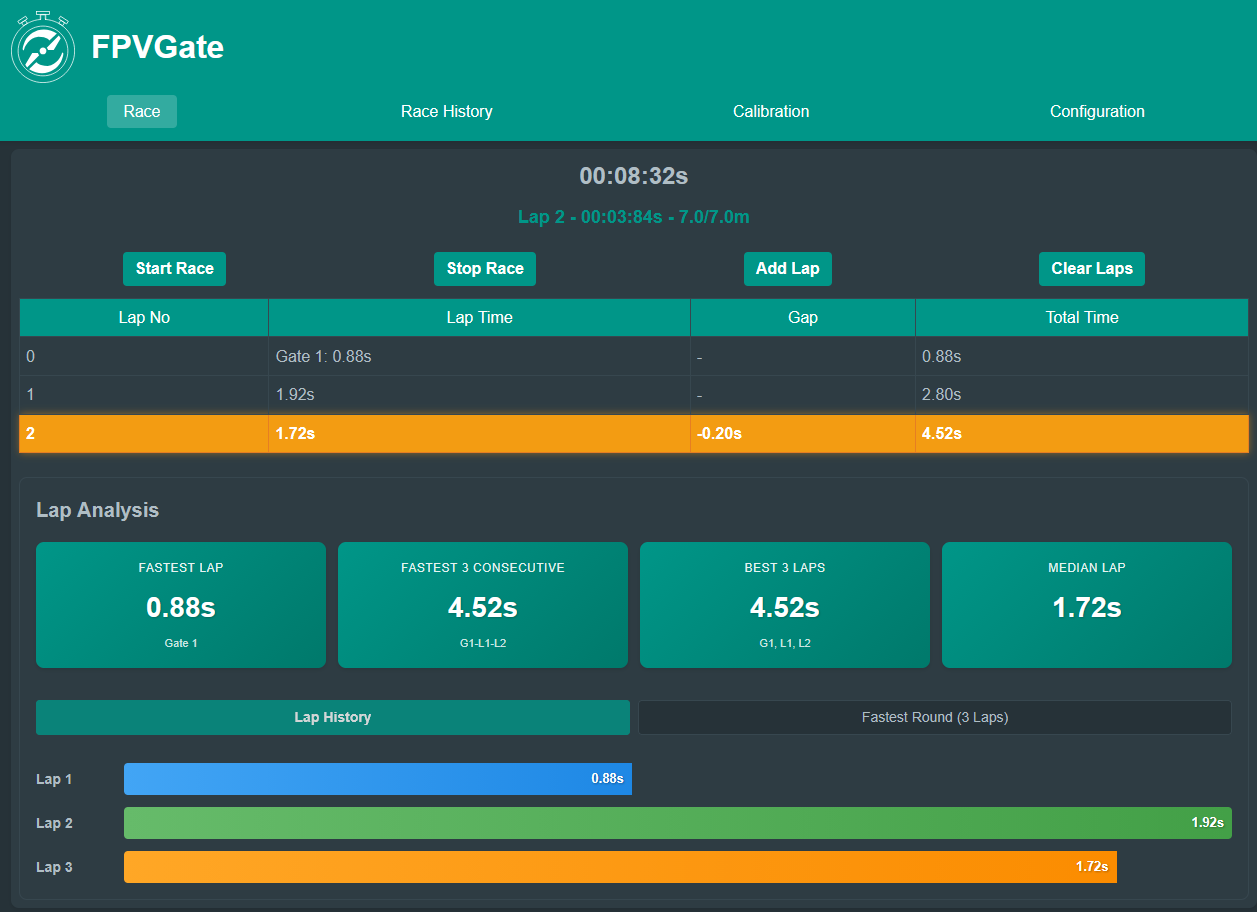
Race Screen
Real-time lap display with fastest lap highlighting and gap analysis
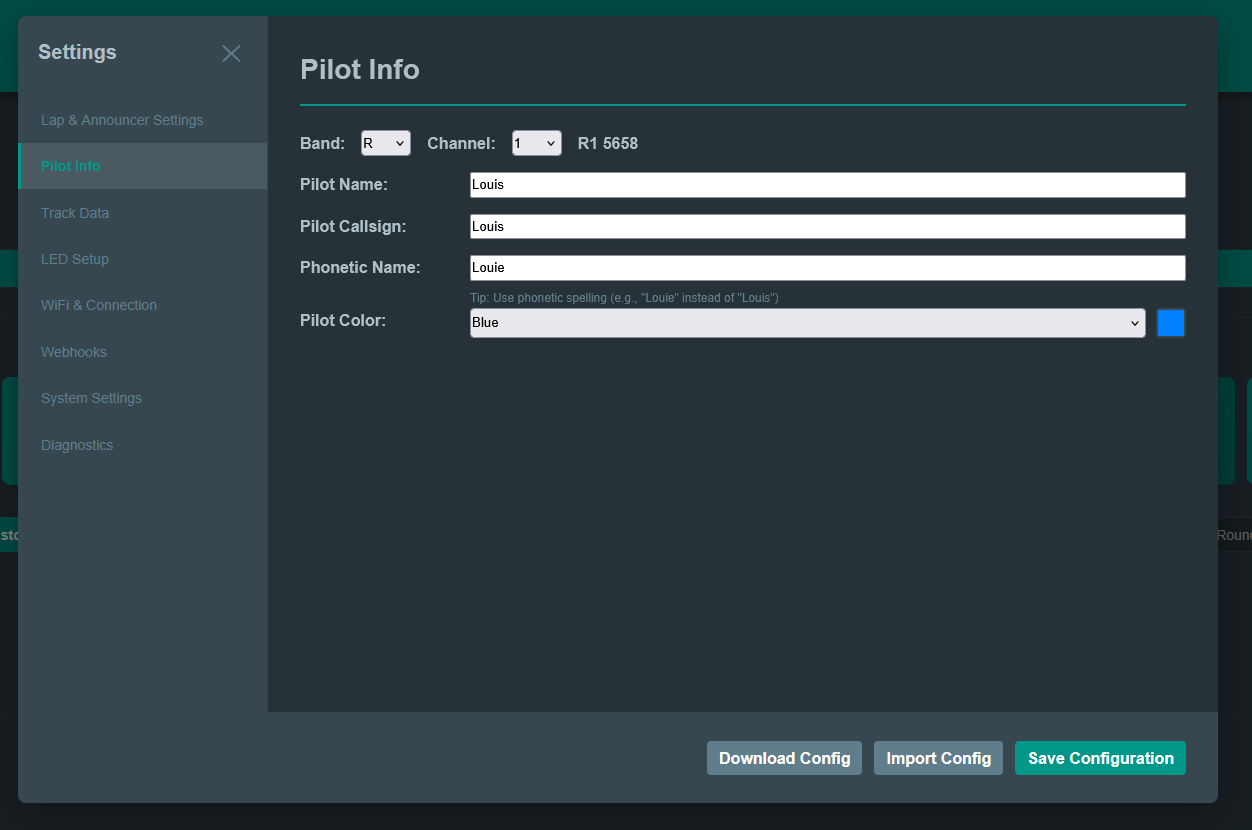
Configuration - Pilot Info
Configure your pilot details and preferences
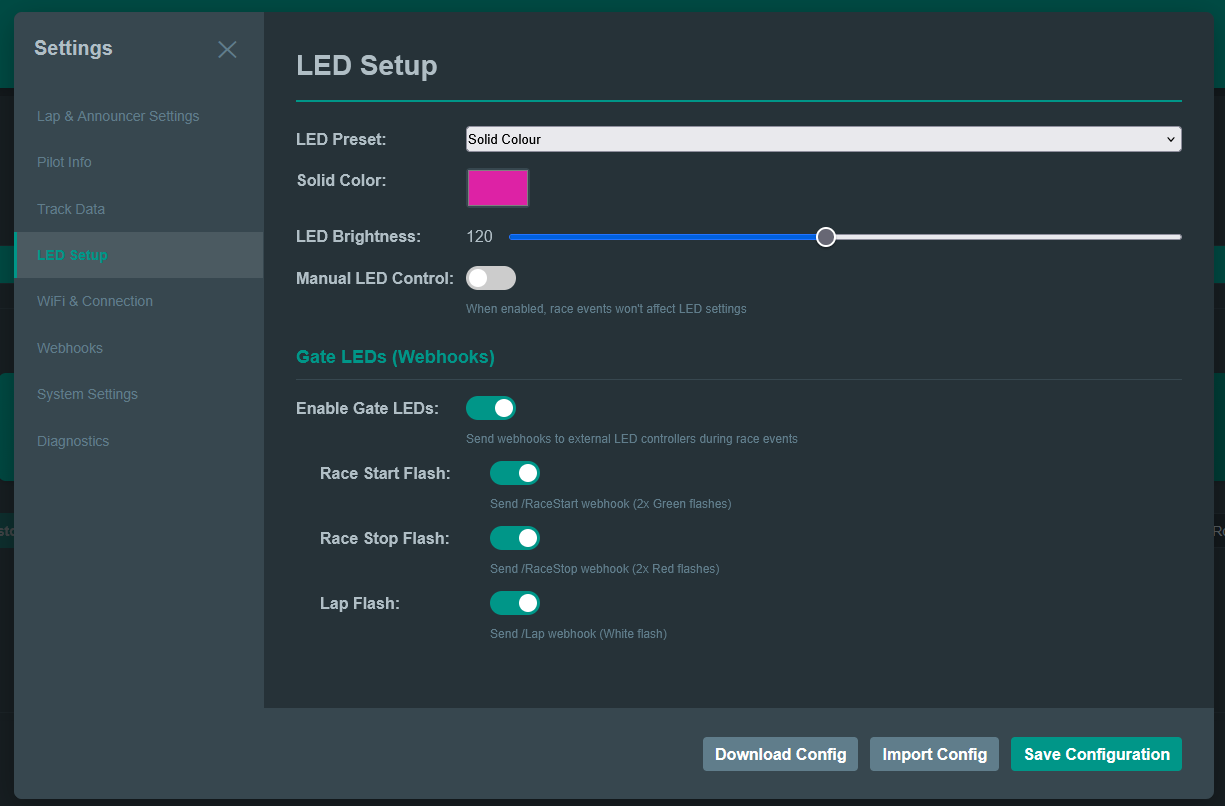
Configuration - LED Setup
Customize LED behavior and colors
Calibration Wizard
Guided calibration process for optimal lap detection
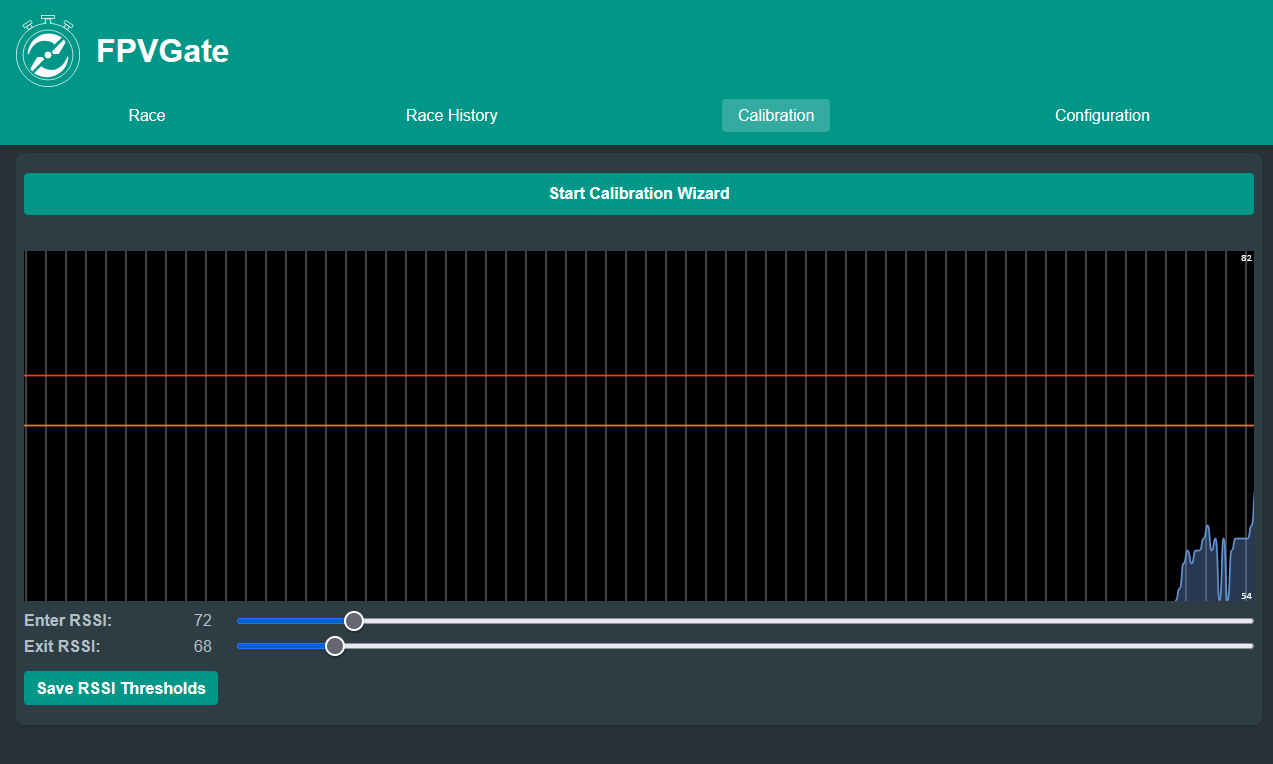
Calibration Screen
Real-time RSSI visualization and threshold adjustment
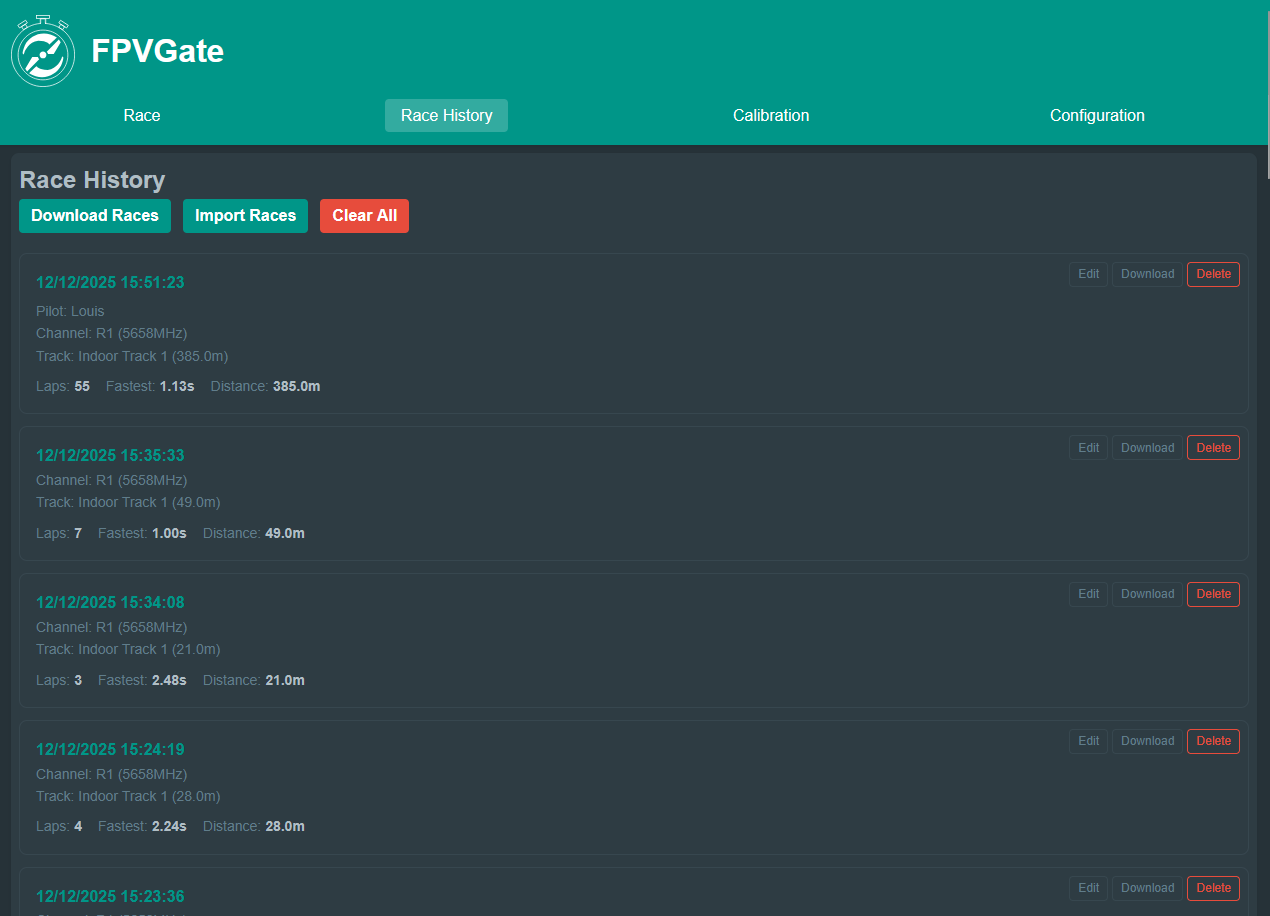
Race History
Detailed analysis of all your races
Troubleshooting
Can't connect to WiFi
- Wait 30 seconds after boot for AP to start
- Check serial monitor for errors
- Verify firmware flashed correctly
No lap detection
- For RX5808, verify the SPI mod; for C5MK, check that the radio is online, UART pins match your board and the receiver mode is saved
- Check VTx frequency matches configuration
- Re-run calibration wizard
- Ensure drone is powered on
False lap detections
- Increase enter/exit thresholds
- Move gate farther from flight area
- Reduce transmitter power if too strong
Starting beep not playing (Mobile/iOS)
- Check silent mode: Your phone must NOT be on silent mode
- iOS: Make sure the silent switch is off
- Android: Ensure media volume is not muted
- The race countdown tone requires your device's ringer/media volume to be enabled
No audio announcements
- Verify SD card is FAT32 formatted
- Check SD card contents match required structure
- Try different SD card
- Check audio files in Configuration menu
Voice announcements not working on iOS Safari
- Enable audio first: Go to Configuration → TTS Settings and click "Enable Voice"
- Test the voice: Click "Test Voice" to trigger audio permission - this is required on iOS Safari
- iOS Safari requires user interaction before audio can play - the Enable/Test buttons provide this
- Make sure your device is not on silent mode (check the physical mute switch)
- If still not working, try refreshing the page and repeating the Enable → Test sequence