Initial Setup
Power On
- Confirm the SD card is inserted into the slot on the board. It should already be in place from the factory.
- Connect the FPVGate AIO to any USB power source using a USB-C cable (power bank, wall adapter, laptop, etc).
- Wait a few seconds for the board to boot. You'll see the LEDs light up when it's ready.
Connect to the FPVGate Network
On your phone or computer, open your WiFi settings and look for the network:
Once connected, open a browser and go to:
http://fpvgate.local
or http://192.168.4.1
Works on both mobile and desktop. If fpvgate.local doesn't resolve, use the IP address directly.
Or Connect Over the USB Cable
On firmware 1.8.0 and later, a FPVGate plugged into a computer appears as a network device. No WiFi to join, nothing to install:
http://192.168.7.1
Works on Windows and Linux. macOS is not supported — use WiFi on a Mac. The WiFi network stays available at the same time, so a phone can stay connected while you use the cable. If nothing appears, unplug the cable and plug it back in; after a firmware update the board waits in its bootloader until power has been removed.
Configure Your Profile
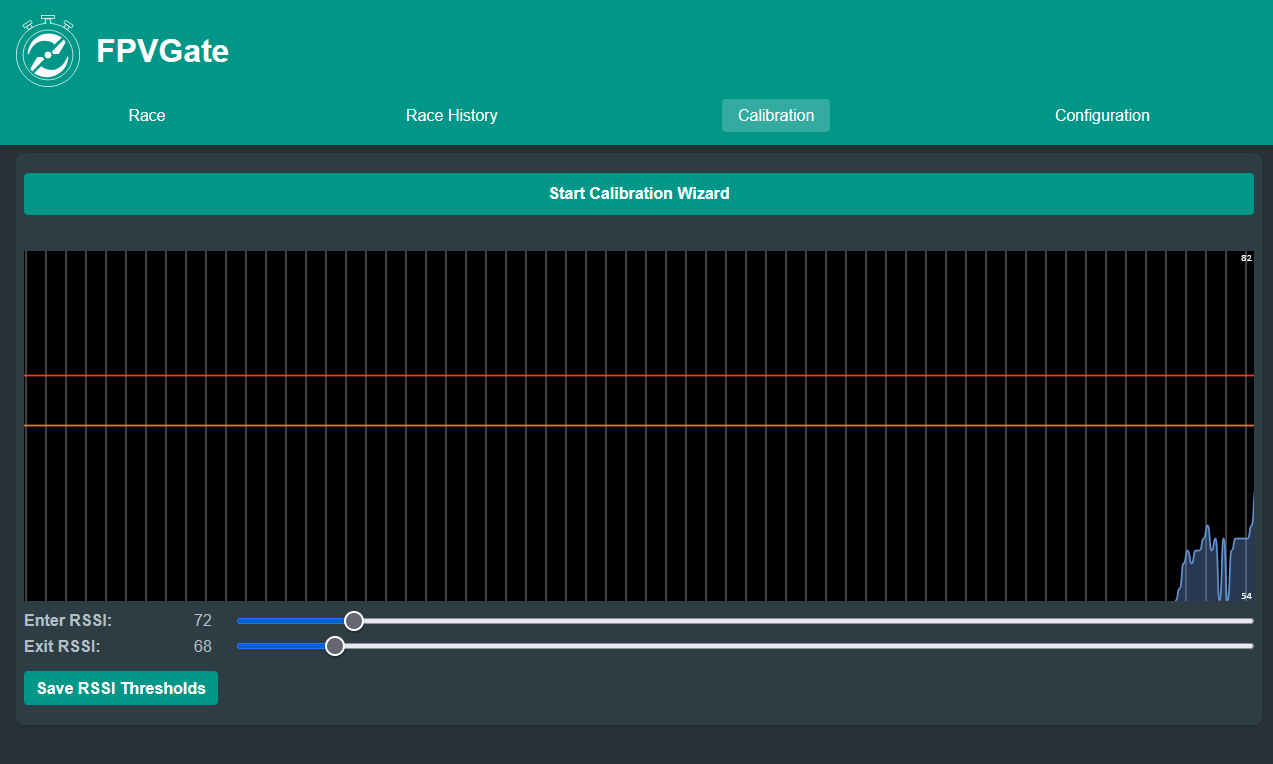
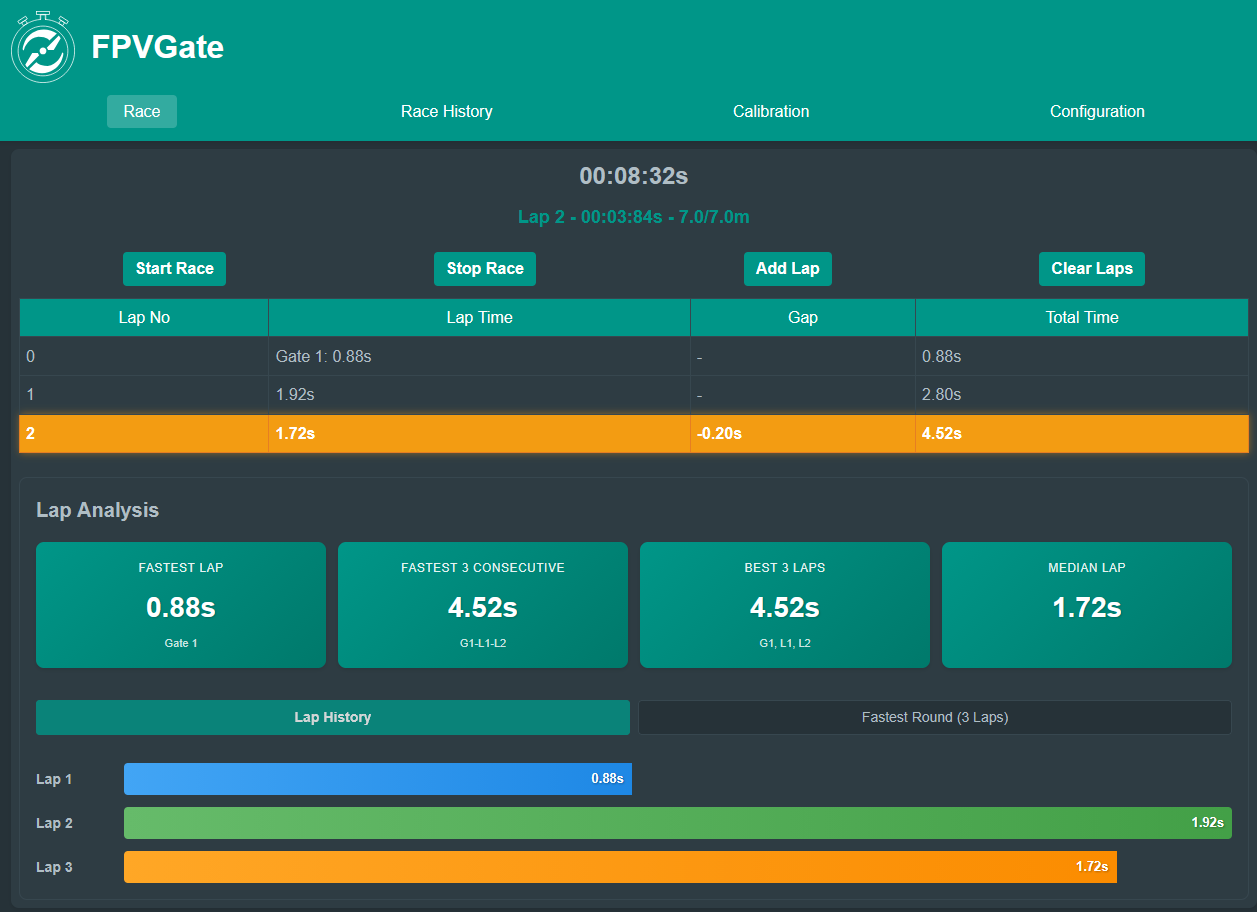
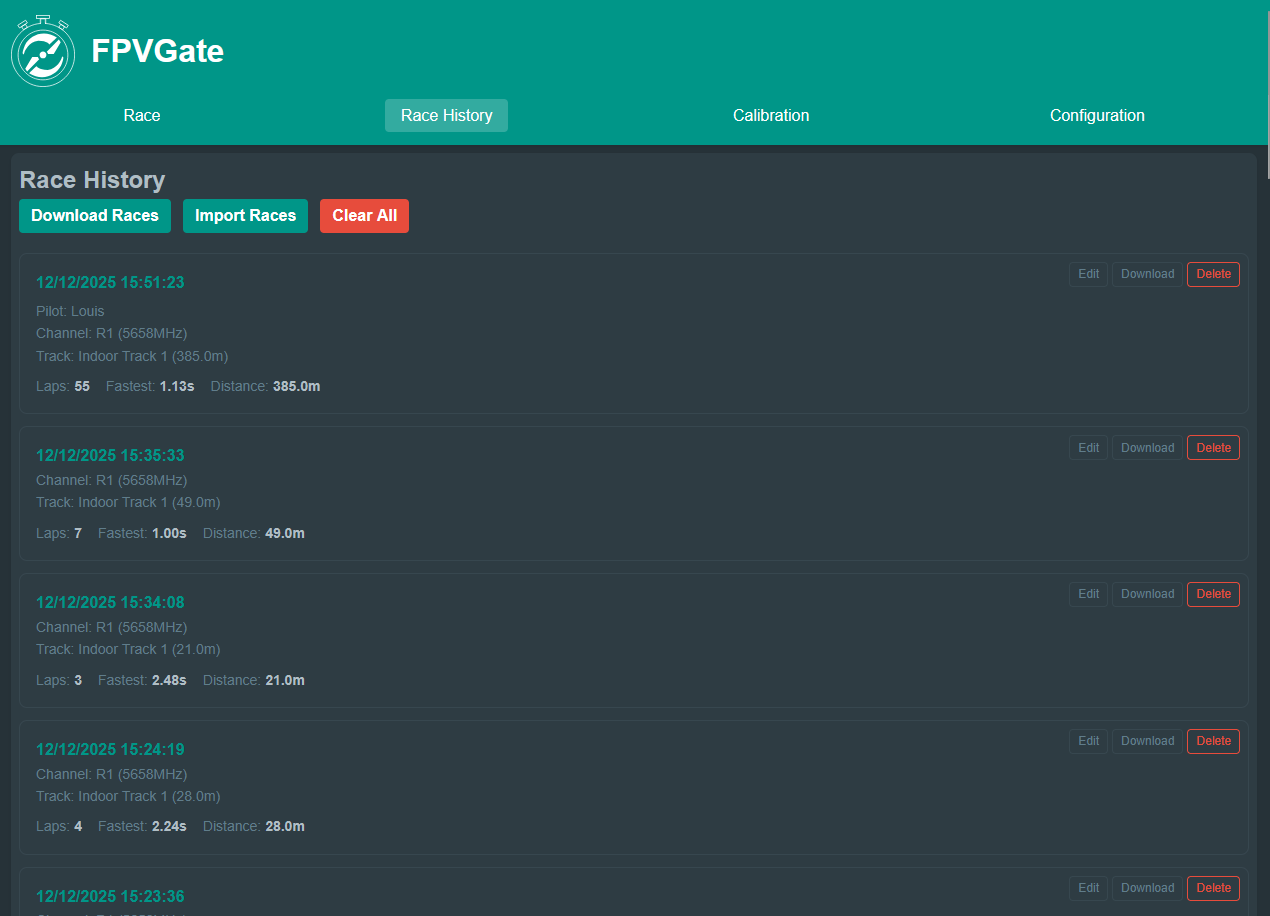
Head to the Configuration page from the main menu. Here you'll want to set up a few things:
Tap each item below to see a screenshot.
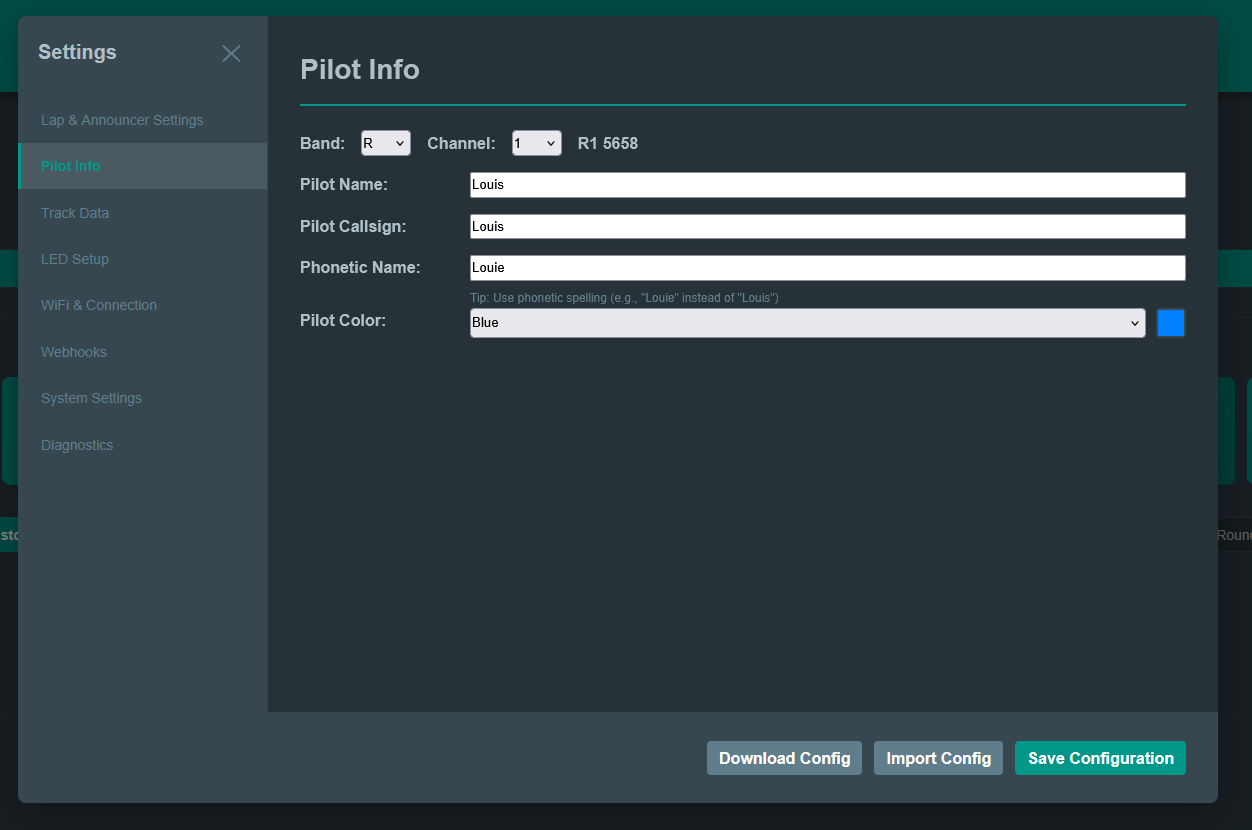
Set your name so it appears in lap announcements and race history.
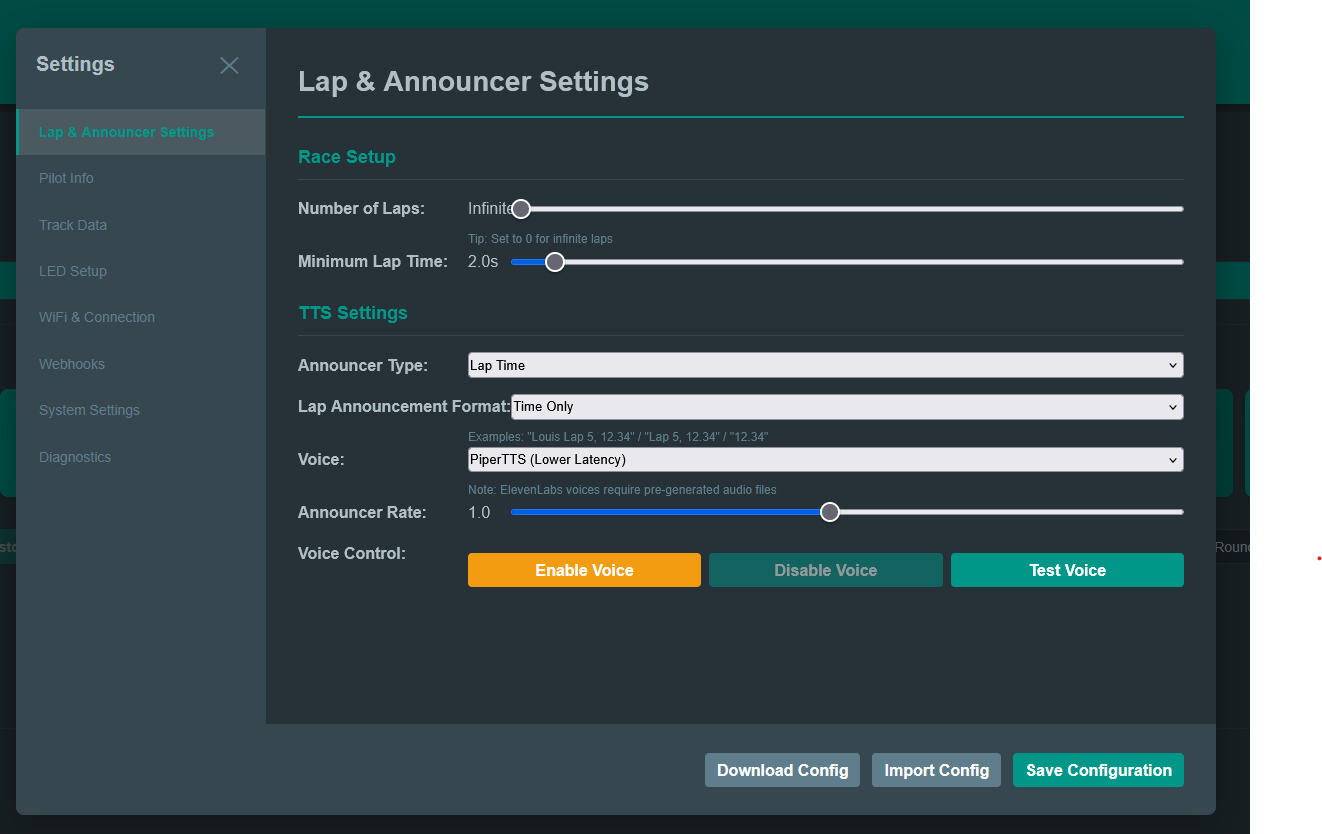
Choose from 4 built-in voices for lap time announcements. Hit "Test Voice" to preview each one.
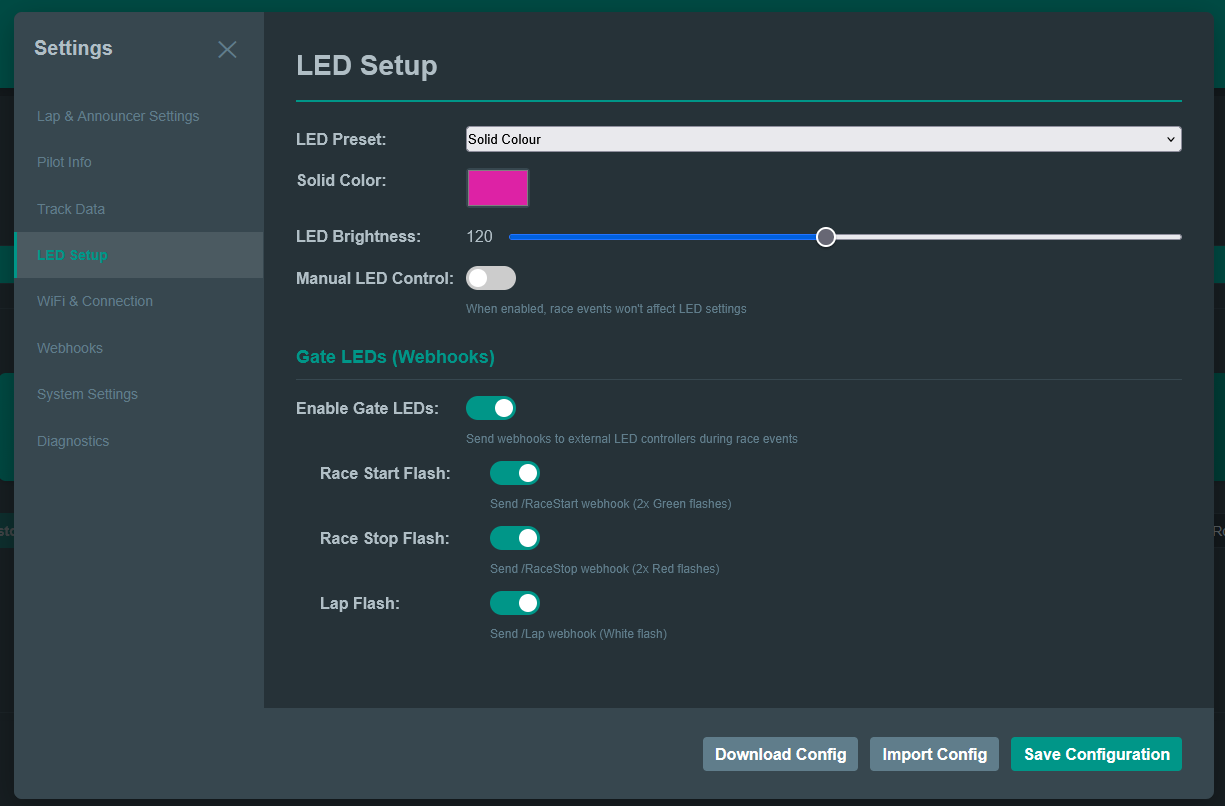
Pick an LED color preset, or customize your own. These provide visual feedback during races.
Connect to Your Home WiFi (Optional)
If you're flying at home and want to access FPVGate from your regular network instead of switching WiFi every time:
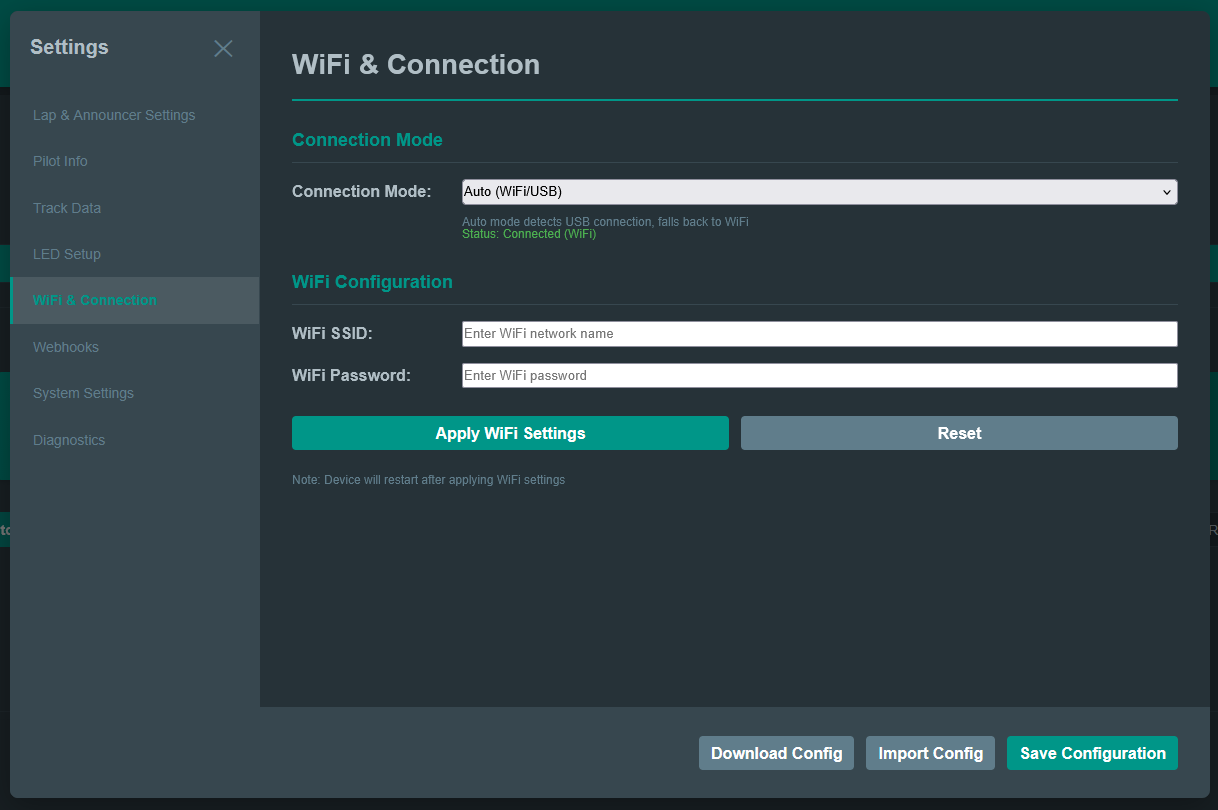
- Go to Configuration and then WiFi & Connection.
- Under WiFi Station Mode, enter your home network name (SSID) and password.
- Click Save. The device will reboot and connect to your home network.
- You can then access the timer at
http://fpvgate.localfrom any device on the same network.
Good to Know
When connected to your home network, the FPVGate access point is still available as a fallback. If the device can't reach your home WiFi (e.g. you take it to the field), it will automatically create its own network again.